


Bridgeport GBT Bus Tracker
3.845.00 Reviews
App Specs
- Version
- 4.0
- Updated On
- License
- Free
- Downloads
- 10,000+
- Developer
- bigreni
- Categories
- Maps & Navigation
- Platform
- Android
Screenshots
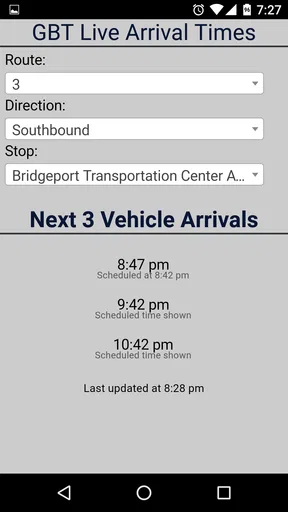
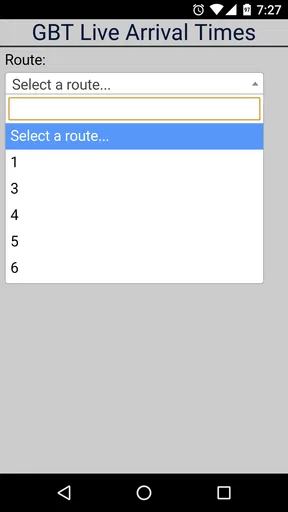
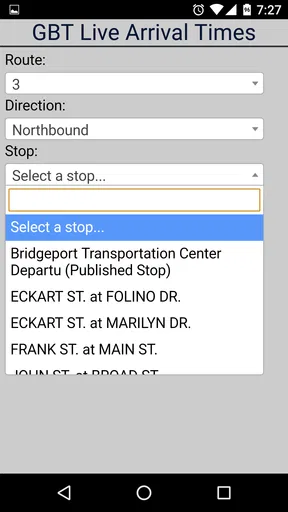
 Analysis by AppCompare
I found Bridgeport GBT Bus Tracker most useful when I treated it as a focused travel tool rather than a full replacement for a general navigation app. It is a lightweight Android app from bigreni for checking Greater Bridgeport Transit service, and its narrow purpose is also its main appeal: when I already know the route or stop I need, I can open it and concentrate on bus information instead of sorting through driving directions, walking routes, and unrelated transit networks.
That simplicity comes with a trade-off. A small bus-tracking app can feel wonderfully direct when everything lines up, but it gives me less room for recovery when the trip is unfamiliar or something goes wrong. I would recommend it most to regular GBT riders who want a quick way to check service in Greater Bridgeport. I would be more cautious about relying on it as my only travel companion for an unfamiliar journey, a time-sensitive appointment, or a trip that involves several transport systems.
Getting past the first points of friction
I find the first few minutes with a focused transit app are best spent learning how it expects me to frame a journey, rather than tapping around for a hidden all-purpose planner. I would start with a familiar GBT stop and note which choices make the result clear, then repeat the check for the opposite direction. That small comparison builds confidence before I rely on the tool away from home.
Why the first use may feel less obvious than expected
The store short description is simply “Bridgeport GBT,” while the longer summary describes it as a lightweight tracker for Greater Bridgeport. That distinction matters. I approached it expecting a compact transit utility, not a broad trip planner. If a new user opens it looking for the kind of step-by-step journey builder found in larger mapping apps, the experience may initially seem limited even when the app is working as intended.
My first practical advice is to begin with one known task: identify the GBT route or stop you need, then use the app to check the relevant information. Starting with a specific destination makes it easier to tell whether the issue is navigation inside the app, missing service information, or simply an expectation that belongs to a different kind of application.
This is especially important for occasional visitors. A person who already knows the local bus network can use a lightweight tracker efficiently because they bring the route knowledge with them. Someone who does not know which line serves a destination may still need a general maps and navigation app to discover the journey first. In that situation, Bridgeport GBT works better as a focused second step than as the entire planning process.
Simple checks before blaming the tracker
When a transit app appears empty, slow, or unhelpful, I check the basics in a deliberate order. I confirm that the phone is online, reopen the app, and make sure I am looking at the correct route or stop rather than assuming the first screen represents every possible service. I also check whether the problem affects one selection or the whole app. That distinction quickly narrows the likely cause.
Worth Reading Before You Choose

EA SPORTS FC Mobile 26 Is a Bigger Football Game, but It Takes Time

Flipboard Shows What News Apps Must Do Beyond the Feed

Switching to Android Auto Means Rethinking Your Driving Routine

Google Calendar Makes a Crowded Week Easier to Manage

Ludo King Makes the Most of the Minutes Between Plans

Baby Panda World Brings Quick Play to Modern Phones, but Its Game Library Feels Busy
A single missing result may come from an incorrect stop name, an unfamiliar abbreviation, or a selection that does not match the direction of travel. A completely unresponsive screen points me toward a different kind of troubleshooting. Closing and reopening the app is a sensible first recovery step, followed by checking the phone’s connection and available storage if other apps are also behaving strangely.
I would not repeatedly tap every option while standing at the curb. That creates confusion and wastes time. Instead, I keep the search narrow, verify the route or stop against the physical sign or timetable where available, and then try again. This habit is more valuable with a compact tracker because the app is designed around a local transit use case, not around explaining every possible travel choice to a first-time rider.
What the version and device requirements mean in practice
The current version is 4.0, and the minimum operating system is Android 11. That requirement is easy to overlook when an older phone is being reused for travel. If the device runs an earlier system, installation or normal use may not be available, and trying to force the issue is unlikely to improve the experience. I would check the phone’s system version before planning to depend on the app.
For a supported phone, I would still install it before the day of an important trip rather than at the bus stop. That gives me time to see how the route and stop information are presented, confirm that the app opens normally, and learn where the information I need appears. A few minutes of preparation can prevent the common mistake of discovering the interface only when the bus is already approaching.
The app is free to install, although it includes in-app purchases ranging from under one dollar to around ten dollars per item. I would review any purchase prompt carefully before confirming it, particularly if I only want basic transit checking. The free entry point makes it easy to try, but “free” should not be treated as a promise that every optional element has no cost.
A setup routine I would actually use
My preferred setup is practical rather than elaborate. I install the app while connected to a reliable network, open it, and test it with a route I already recognize. I then repeat the check for a stop near home or work. This two-part test matters because recognizing a route does not always mean I have learned how the app presents stop information.
Confirm that the phone meets the Android 11 requirement and has a stable connection.
Open the app and start with a familiar GBT route or stop.
Compare the displayed choice with the stop sign, route information, or another trusted local reference.
Repeat the process for the direction in which I normally travel.
Keep a backup plan for an appointment where a delayed or unavailable update would matter.
The fourth step is easy to skip, but direction is a frequent source of mistakes in bus travel. A stop may serve more than one direction, and selecting the right name without checking the direction can create a false impression that the tracker is wrong. I prefer to verify the complete journey context before deciding that the app has failed.
Recovering a trip when the normal workflow breaks
When my usual check stops helping, I try to preserve the trip before I try to diagnose every possible cause. I compare the screen with the stop and any other dependable service information, then decide whether to wait, change plans, or use a broader navigation app for the next leg. This section looks at making that switch calmly, so a stalled workflow does not consume the time needed to reach the destination.
Separate app problems from transit problems
The most useful troubleshooting question is not “Why is the app wrong?” but “What exactly is failing?” If the app opens and lets me select information, yet the bus does not arrive when expected, the issue may be service-related rather than a software problem. Transit conditions can change because of traffic, detours, weather, staffing, road work, or an update that has not reached the information source. A tracker can only be as useful as the information available to it.
That is why I avoid treating a displayed arrival as an absolute guarantee. I use it to make a decision about when to walk to the stop, whether I have time to finish a task, or whether I should begin a backup plan. For a medical visit, exam, interview, or flight connection, I leave extra time and use a second source when the consequences of a missed bus are serious.
If the app shows no useful information, I compare the situation with what I can observe locally. Is the stop sign present? Are other buses moving normally? Does another transit source show a service alert? If the physical situation contradicts the screen, I give more weight to immediate local evidence and official service notices than to repeated refreshing.
A recovery sequence that avoids wasted time
When I encounter a blank result or an apparent freeze, I use a short recovery sequence. First, I pause rather than repeatedly pressing the same control. Next, I close and reopen the app. Then I check the connection and try a known route or stop. If that works, I return to the original selection and review the spelling, direction, and stop choice.
If the known route also fails, I check whether other apps can connect. This tells me whether the problem is broader than Bridgeport GBT. If the phone is offline, switching networks or moving to a place with better reception may help. If other apps work normally but this one still fails, I would restart the phone and make sure the installed version is current through the normal app-store process.
I would avoid aggressive measures such as clearing all app data unless I am comfortable repeating the setup. A reset can remove local state without solving an outage or a service-data issue. For a small utility that I mainly open when travelling, preserving a simple, repeatable workflow is more useful than experimenting with settings I do not understand.
Using it alongside a larger navigation app
Bridgeport GBT has a clear role beside, rather than necessarily instead of, a general navigation app. I use the larger app to understand the complete journey: where to walk, which destination is closest, and whether another transport mode is involved. I use the local tracker for the GBT-specific part of the decision, especially when I already know the stop and want a focused check.
This division of labor reduces a common kind of friction. A general maps app may be excellent at planning a route but less convenient when I only want to monitor a local bus. Conversely, a dedicated tracker may be quicker for a familiar bus trip but less helpful when I need unfamiliar walking directions or a multi-stage itinerary. Neither tool has to win every task.
For a daily commuter, that combination can become efficient: plan the journey once with a broader tool, then use Bridgeport GBT during the day for the local transit check. For a visitor making a single trip, installing two apps may feel unnecessary, and a full navigation app may be the better all-in-one choice. The right option depends on whether local bus monitoring or complete route discovery is the main need.
When the phone, network, or service is the real cause
Not every disappointing result is caused by the app itself. Weak reception can interrupt a request, a low battery can make a phone unreliable at the exact moment it is needed, and an older device that barely meets the operating-system requirement may feel slower than a newer one. I also consider whether the bus information is changing quickly enough for the current situation. A tracker is not a substitute for direct confirmation during an unusual disruption.
There is a useful distinction between stale information and incorrect selection. If one route looks sensible but the timing seems old, I investigate connection and service conditions. If the result is for the wrong destination or direction, I first review my choices. That simple distinction prevents me from reinstalling an app when the actual mistake is that I selected the outbound side of a stop.
I also recommend keeping the phone’s time and date correct. Transit information is interpreted relative to the device’s current time, and a phone with incorrect settings can make otherwise understandable information seem inconsistent. This is a general device check, but it is particularly important when a rider is comparing schedules or expected arrivals while moving between locations.
Who benefits most from this focused design
The strongest audience is someone who regularly travels within Greater Bridgeport using GBT and values a small, dedicated tool. That person already understands the local geography and mainly wants a faster way to check bus information. The app’s lightweight identity is an advantage here: it keeps the task centered on the local network instead of turning every check into a full trip-planning exercise.
It can also suit a family member helping someone plan a regular bus ride. Once the route and stop are known, the helper can demonstrate a repeatable process: open the app, choose the familiar transit detail, confirm the direction, and allow enough time for normal uncertainty. The value is not just the screen itself but the routine built around it.
I would skip it as a primary tool if I am visiting Greater Bridgeport without knowing the bus network, need detailed walking instructions, or regularly combine GBT with several other transport systems. I would also avoid relying on it alone when a missed connection would create a serious problem. In those cases, a broader navigation service, local service information, or direct confirmation should take priority.
What the user numbers suggest, without overreading them
The app has passed ten thousand installs and has an average rating of 3.8 from around one hundred ratings, with roughly forty-five written reviews. I read that as evidence of a real but relatively focused user base, not as proof that every rider will have the same experience. A specialized local tool can be genuinely valuable to the people who need it while still feeling too narrow to someone expecting a major navigation platform.
The Everyone content rating makes it suitable for a broad audience from a content-classification perspective. That does not remove the need for ordinary travel judgment: children and inexperienced riders may still need help choosing the correct direction, recognizing the stop, and handling a delayed service. The rating describes the app’s content, not the complexity of using public transport independently.
My everyday test scenario
Imagine I am leaving work in Greater Bridgeport and want to catch a familiar GBT bus home. I would check the route before leaving the building, confirm the stop and travel direction, and walk to the stop with enough time to spare. If the information looks unusual, I would compare it with the stop itself and a broader navigation or service source rather than assuming the next bus is guaranteed.
If the app fails to load while I am outside, I would first check reception and reopen it. If the phone is online but the tracker still does not respond, I would use the backup source and avoid spending the entire waiting period troubleshooting. The key insight is that the app is most helpful when it reduces a known decision; it is less helpful when I ask it to solve an unfamiliar or disrupted journey from scratch.
My practical verdict
After using it as a focused local transit companion, I see Bridgeport GBT as a sensible choice for riders who want a lightweight way to check Greater Bridgeport bus information. Its narrow scope is not a flaw for a regular passenger; it is the reason the app can feel less distracting than a large maps platform. The developer, bigreni, has kept the product centered on a specific local need rather than presenting it as an all-purpose travel system.
My recommendation comes with clear conditions. Install it on a compatible Android 11 or newer device, test it before an important trip, and learn the route and direction you normally use. Treat its information as a helpful travel input rather than an unconditional promise, especially during disruptions. Keep a broader navigation option available when the journey is unfamiliar or involves more than GBT.
The best way to use Bridgeport GBT is as a quick local check inside a larger travel routine. For that job, it can be convenient and appropriately simple. For complete route discovery, complex connections, or high-stakes timing, I would choose a more comprehensive alternative and use this app only where its local focus gives it an advantage.
Pros
- Real-time bus locations make waiting at stops more predictable.
- Stop search helps users quickly find nearby Bridgeport routes.
- Route schedules are useful for planning regular commutes.
- Simple interface is easy to understand for first-time users.
- Helpful for checking service coverage across the Greater Bridgeport area.
Cons
- Tracking accuracy may vary when buses lose GPS or cellular connectivity.
- Information can become outdated during sudden detours or emergencies.
- Limited usefulness outside the Greater Bridgeport Transit service area.
- Some stops may provide less detailed arrival information than major hubs.
- The app may require location access for its most convenient features.
FAQs for Bridgeport GBT Bus Tracker
What is Bridgeport GBT Bus Tracker used for?
Bridgeport GBT Bus Tracker is designed to help passengers follow Greater Bridgeport Transit bus services in and around Bridgeport, Connecticut. After opening the app, users can typically look for nearby stops, view routes, check scheduled departures, and see estimated arrival information when available. It is most useful for planning a trip, checking whether a bus is approaching, and reducing unnecessary waiting at the stop.
Does Bridgeport GBT Bus Tracker provide real-time bus arrival information?
The app is intended to provide live or near-real-time information for GBT buses, but the accuracy depends on the vehicle transmitting location data and the transit agency’s system. Some arrivals may appear as scheduled times when live data is unavailable, while delays, traffic, detours, technical problems, or poor connectivity can affect predictions. For important journeys, it is sensible to allow extra time and confirm service notices.
Can I use the app to find routes and nearby bus stops?
Yes, route and stop discovery is one of the main reasons to use Bridgeport GBT Bus Tracker. Depending on the device and the app version, you can search for a stop, browse available routes, or use your location to identify nearby boarding points. Before relying on the results, check the direction and destination carefully, since opposite sides of the street may serve different routes or travel directions.
Does Bridgeport GBT Bus Tracker work without an internet connection?
The application may open without a connection, but its most useful features generally require mobile data or Wi-Fi. Live vehicle positions, updated arrival predictions, service alerts, and map information need current data from the transit system. If you expect limited connectivity, review your route before leaving and take a screenshot or note the stop, direction, and planned departure time as a backup.
Is Bridgeport GBT Bus Tracker free, and what permissions might it request?
The app is generally intended as a free public-transit utility, although availability, advertising, or platform-specific conditions can vary. It may request location access to show nearby stops and relevant services, while notifications may be used for alerts if that feature is supported. You can review permissions during installation and disable location access, but doing so may limit map and nearby-stop functions.


